
Cloudflare has become the go-to solution for high-traffic websites. If you’re working in web development, understanding traffic distribution and load balancing isn’t optional—and Cloudflare is one of the most powerful (and easiest) platforms to set up and manage, especially for WordPress.
I currently manage two sites I’d consider extremely high traffic: one for a festival and another for a government assistance program. They consistently handle anywhere from 90,000 to 1.5 million hits within a 30-day window.
Because I like digging into Web Application Firewall (WAF) rules, I’m constantly tweaking configurations to improve performance and reduce server load.
One of the most underrated features in Cloudflare’s WAF is the Expression Editor—and the Expression Builder alongside it.
There’s a straightforward country-blocking feature built into the WAF, along with solid analytics that show where traffic originates globally (the U.S., in my case). What’s less obvious is how to block traffic at the state level.
The reason for this comes down to how internet infrastructure works in the United States. Unlike countries that often have clearly defined IP ranges, U.S. traffic is routed through a large network of shared nodes—roughly 250 nodes and thousands of data centers distributed across regions. Because states don’t have cleanly separated IP pools, state-by-state blocking isn’t something you’ll typically find as a default firewall feature.
So how do you block traffic from places like California, Texas, or Florida on a Michigan-only assistance site?
After a conversation with a technician from GRR-IX and DET-IX, I learned that while nodes share IP space, they can still perform a level of geolocation. Even if a node in Grand Rapids is serving traffic across Michigan, Wisconsin, and Ohio, it can still make educated guesses about origin.
This is where Cloudflare’s expression-based rules come in.
It’s not perfect—expect roughly 90% accuracy—but it’s effective in many scenarios. For example, blocking traffic from California or Texas while serving Michigan users generally works well, since those regions don’t typically share infrastructure. However, trying to block neighboring states like Wisconsin, Indiana, or Ohio can backfire, as shared nodes may result in legitimate Michigan users getting caught in the filter.
Sound a little messy? It is—but it works.
Now, let’s get into how to actually block states using expressions.
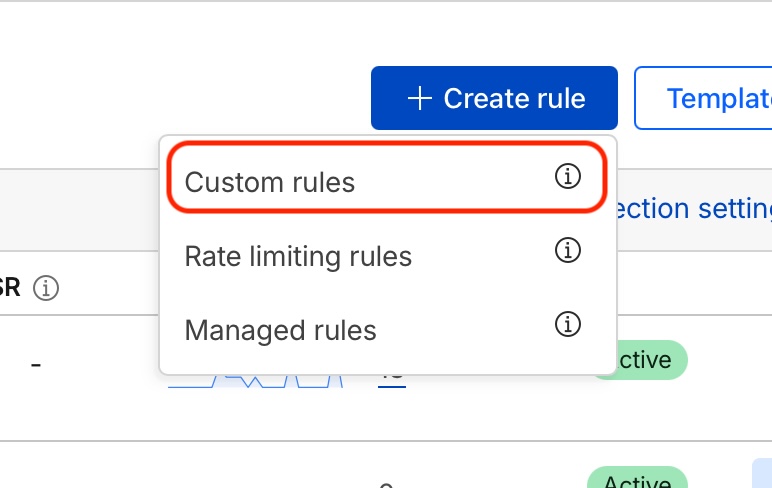
(1) Start by adding a new CUSTOM Rule:
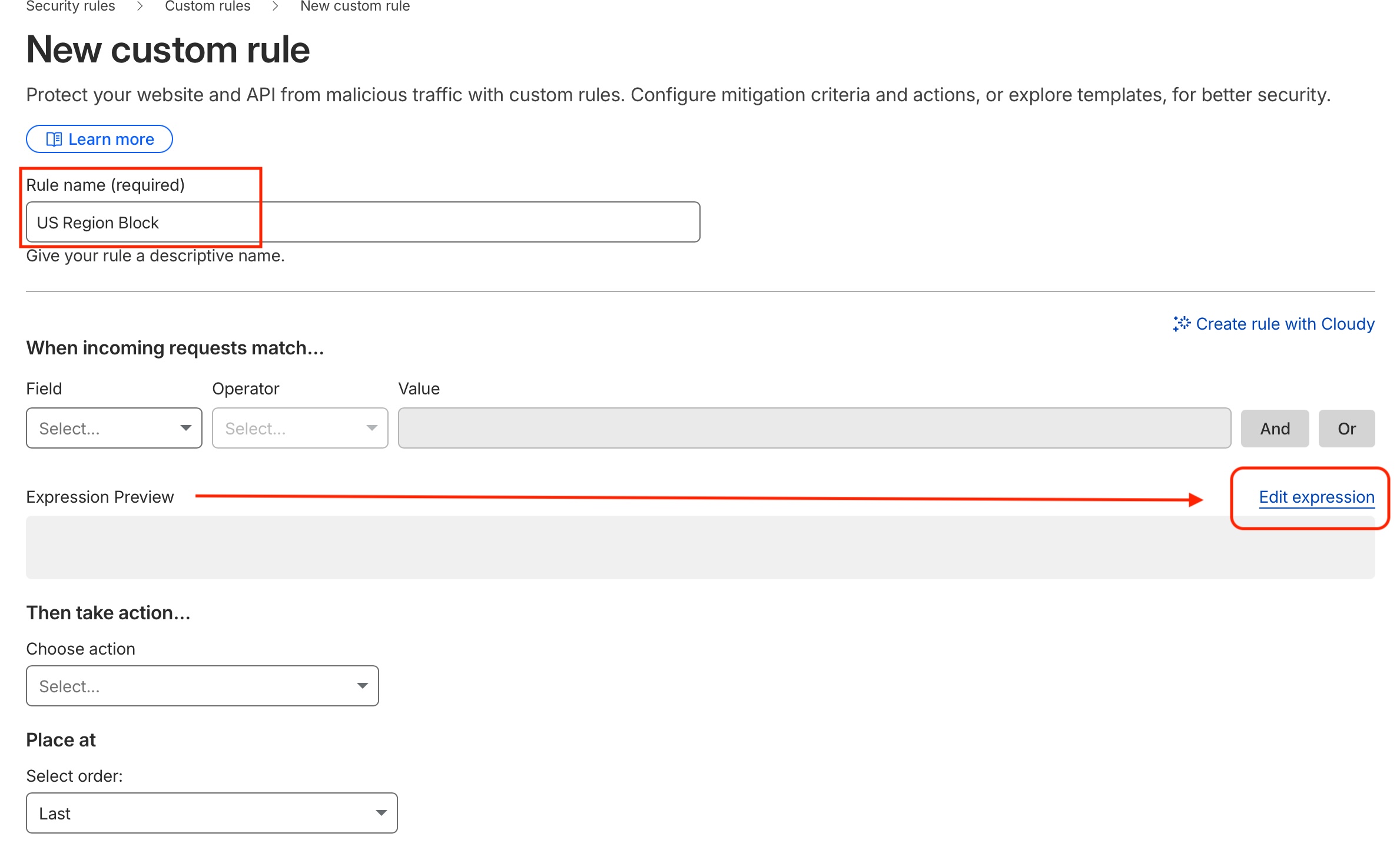
(2) Name your rule the click the EDIT EXPRESSION link:
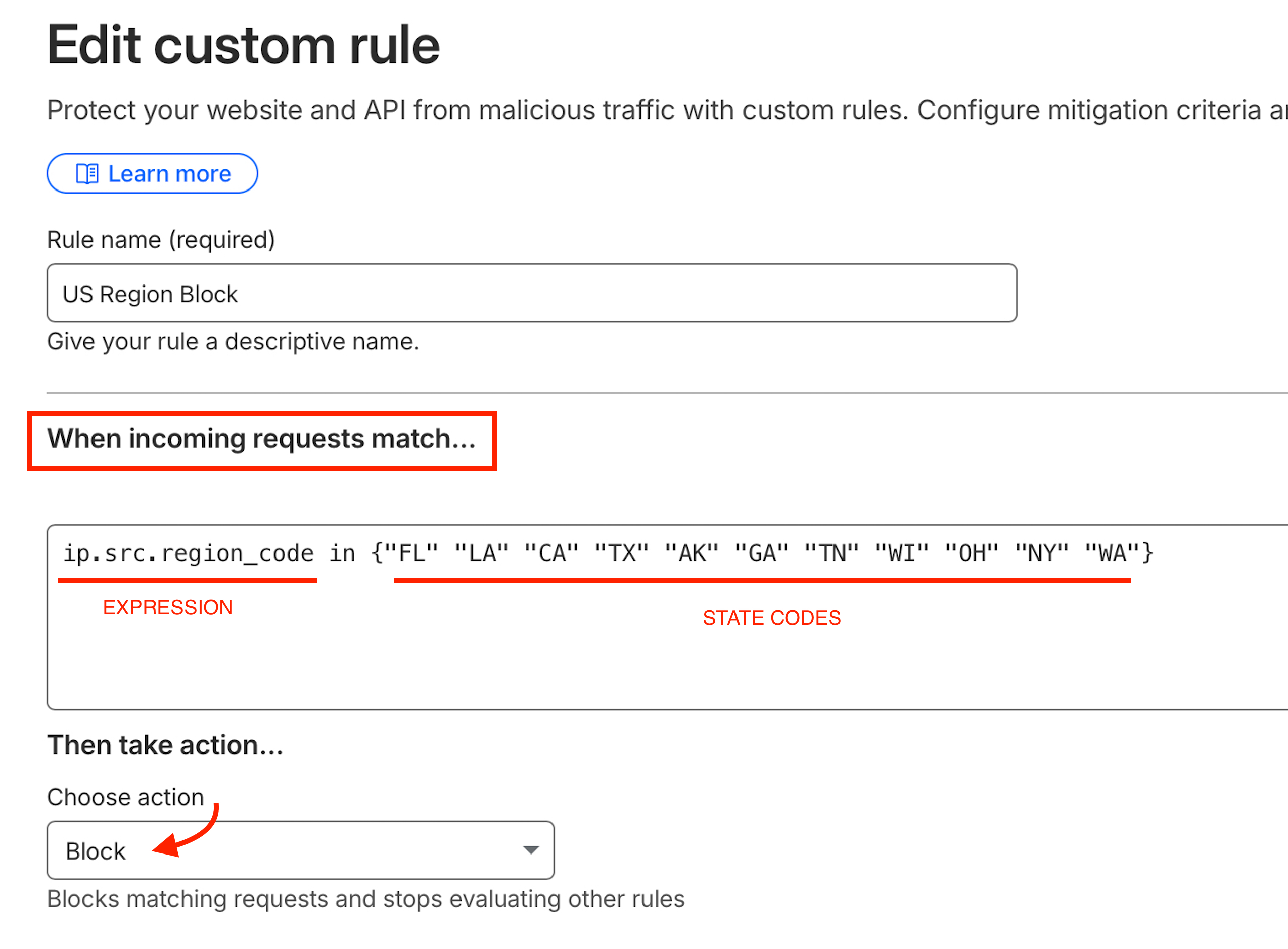
(3) Copy and paste the following code into the editor and add the state abbreviations that you want to block traffic from.
ip.src.region_code in {"FL" "LA" "CA" "TX" "AK" "GA" "TN" "WI" "OH" "Ny" "WA"'}
Additional Queries:
ip.src.country eq “US” and “FL” “LA” “CA” “TX”
The full list of Expression fields can be found here for reference.
